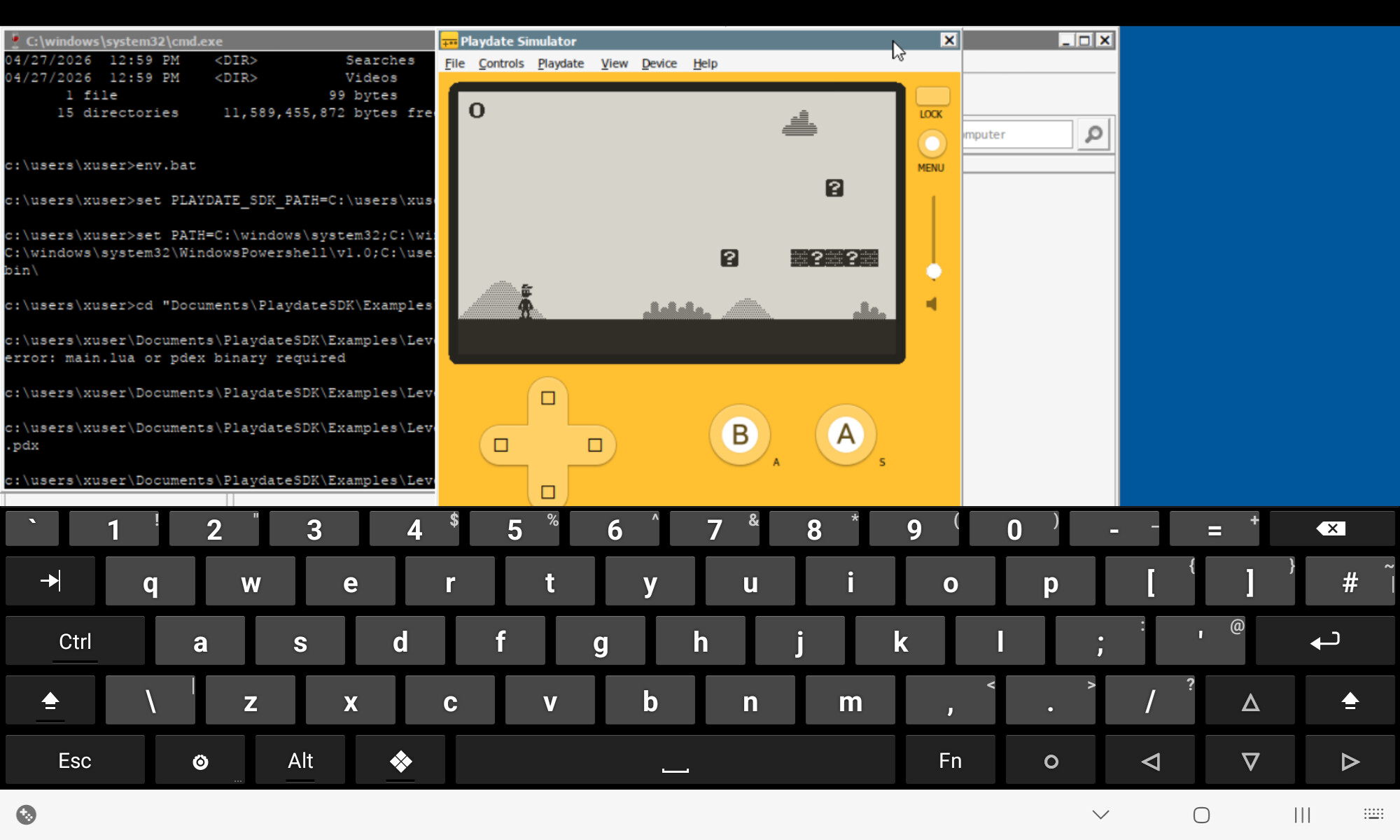
For anyone wanting to develop on the go, I figured out how to get this all working
-
On Android device download and install the latest build of Winlator - Releases · brunodev85/winlator · GitHub
-
Still on Android download the latest Windows version of the PlaydateSDK (it’ll default to the linux one - you need the Win version!)
-
Launch Winlator, create a new profile, all the defaults should be fine (though you might want to tweak the screen resolution) - check the D: is mapped to the place your playdatesdk downloaded to
-
Inside your windows container, install the sdk from d:
-
I couldn’t figure out how to set default env vars, so make yourself an env.bat containing:
set PLAYDATE_SDK_PATH=%USERPROFILE%\Documents\PlaydateSDK
set PATH=%PATH%;%PLAYDATE_SDK_PATH%\bin\
-
Then launch a cmd prompt, run that bat, then use pdc and playdatesimulator as you usually would
-
To make the keyboard appear, press back and the menu appears, then press the keyboard button
-
You might need to fiddle with different keyboards to find one that properly works - the one I was using doesn’t have a working backspace, for instance, which makes doing anything somewhat infuriating
1 Like
My game in dev runs at full speed on my old samsung tablet, so could be a viable way of demoing if you need a bigger screen and don’t fancy lugging a laptop with you.
Hi! Thanks for this tutorial this was very useful. I was wondering if you knew if it’s possible for the Playdate Simulator to detect touch inputs (virtual controller)? I tried a bunch of different settings but it never recognizes the controller. I also tried running it through GameHub Lite, it does recognize the virtual controller and responds to the touch inputs, but I can’t seem to access the GameHub app’s files (so I can’t add pdx folders in the simulator’s data folder). So yeah idk what GameHub does that Winlator doesn’t (or that I can’t figure out to do…)
Hopefully you know something, if not it’s okay! Thanks already for the guide.
Yes, I managed to get that working - in Winlator's menu
- pick Input Controls
- create a new profile,
- add a DPAD, A, B and Menu button
- Map the DPAD to keyboard up/down/left/right
- map the A button to keyboard A
- map the B button to keyboard S
- map the menu button to keyboard Esc
Then when your container is running, bring up the winlator menu, select Input controls, and pick your new input profile. You should see the on screen controls
Now launch the simulator, make sure the controls are set to "Arrows AS" then try the onscreen buttons
Thanks for the reply!
Okay I’ll try it that way, won’t be the best way to control the crank and accelerometer but it’s more than enough.